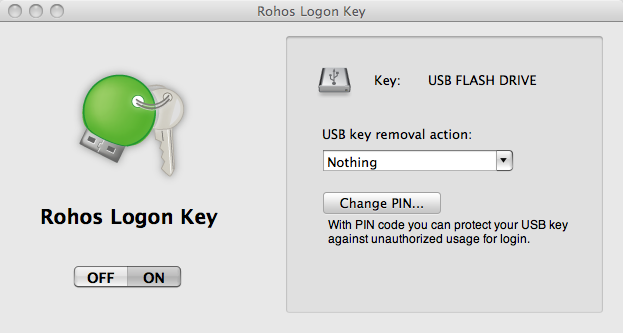
+ Added a few actions on USB Key removal : Lock, Log Out, Sleep, Shutdown and Nothing – the most helpful for Mac Book Air
* Fixed PIN code support for Intel based Macs
* Improved UI
* Improved Installer
* “Add USb Key” dialog doesn’t show odd Apple hardware anymore (of course iPod will be shown)
For Mac Book Air Users: This version allows to use USB flash drive only for logon/unlock moments after that you can unplug it, so you don’t need to lose a USB port. This is due to ‘Nothing’ option (see screenshot).
download v.1.4.3 beta.

Notes about PIN code:
For those who are not familiar with two-factor authentication: By setting up PIN code you protect USB Key from somebody who can use it for logon into your Mac without your permission. After you plug in USB Key – Rohos Logon will always ask user to enter PIN in order to log in or unlock your Mac. To set up PIN, just click Change PIN button, after you set up your USB Key.
- PIN code works only for USB flash drives
- To change it – click Change PIN – and enter new PIN and Confirmation – OK
- If you forget PIN code – use second USB Key (created before) or Safe Boot to disable Rohos Logon
To Upgrade:
It’s better to Quit current Rohos Logon , install new version over, and then open Rohos Logon and set up USB Key again.
Notes About Uninstalling / OFFing Rohos Logon:
- To OFF or Quit Rohos Logon USB key should be connected

 Recently we have come across wonderful application Parallels Desktop 4.0 for Mac OS X. It allows to use Windows applications under Mac seamlessly. We tested Rohos Disk and Rohos Mini Drive under Parallels (+winxp) and figured out that we don’t need to port Rohos Disk under Mac OS X :).