Credentials Prompt of RDP 6.0 and login with USB Key
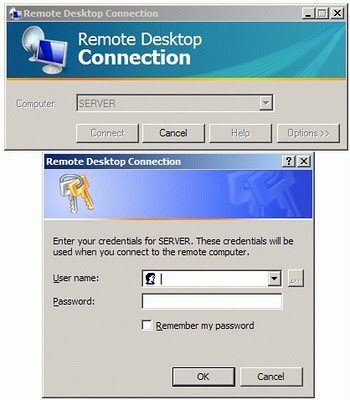
Microsoft Remote Desktop Connection 6.0 (on Windows Vista\Seven) by default makes it mandatory for the user to enter user name and password before RDP client can establish connection to the WinSeven/2008 remote server (“ Enter your credentials for <server>. These credentials will be used when you connect to the remote computer” ). This is called “ Network Level Authentication“. If you are going to use USB key you can skip this prompt or disable it.
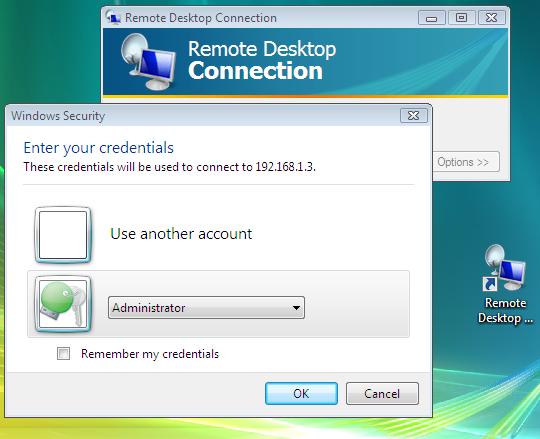
on vista you will see
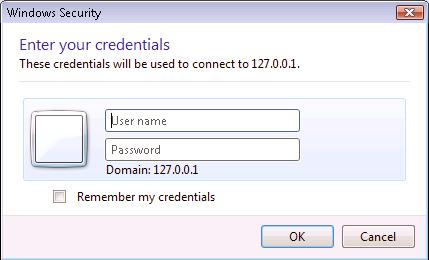
As Rohos Logon Key RDC plugin works with the established terminal session this Credentials Prompt may be ignored or disable it by default.
Actually if Rohos Logon is installed locally it could work in this ‘credential prompt’ window:
How to disable RDC Credentials Prompt:
To skip the credentials prompt – choose “Do not attempt authentication†under Authentication options on the Advanced tab, but this option is not set permanently. To permanently skip the additional credential screen , edit the Default.RDP file (My Documents folder) in notepad. Including enablecredsspsupport:i:0 disables the Credentials Security Service Provider for the connection. If you use separate .RDP files for different server, modify each of those .RDP files. Below is the content section of the default.rdp file with enablecredsspsupport:i:0 option included.
redirectposdevices:i:0
authentication level:i:0
enablecredsspsupport:i:0
prompt for credentials:i:0
negotiate security layer:i:1
Note that this workaround is suggested only if you connect Windows 2000/2003/XP systems because according to Terminal Services Team blog post – “This option does disable the new credential prompting behavior, but it also disables support for Network Level Authentication for Vista (and Longhorn Server) RDP connections; Network Level Authentication requires credentials to be provided by the client before a session is created on the server side.†So if you do connect to Vista over RDP, you’ll not be able to use this option.