Special Offer – 30% off.
Dear users and customers, this summer we offer a special discount for all Rohos products.
Buy or upgrade and save 30%
Dear users and customers, this summer we offer a special discount for all Rohos products.
Buy or upgrade and save 30%
We are glad to announce new release of Rohos Logon Key for Mac v.1.7.3 – two-factor authentication solution based on USB tokens, for Mac OS X 10.4/10.5 and coming 10.6. This version offers better support for Snow Leopard and improvements for ‘Bluetooth logon’ feature.
ANN For “Tiger” (10.4) users: We decided to stop support for Mac OS X 10.4 on Rohos Logon Key 1.7.2. This setup package contains a special folder named “Tiger” with Rohos Logon Key 1.7.2.
ANN For “Snow Leopard” users: Please use setup package from folder “Snow Leopard (10.6 x64)”.
What’s new:
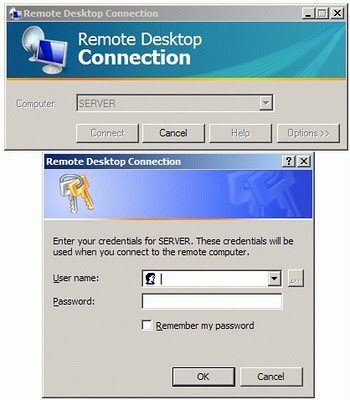
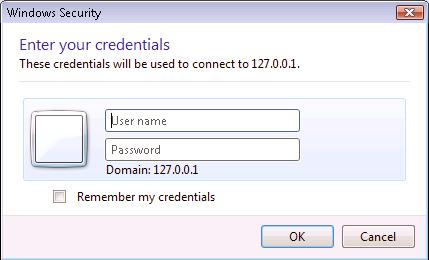
Microsoft Remote Desktop Connection 6.0 (on Windows Vista\Seven) by default makes it mandatory for the user to enter user name and password before RDP client can establish connection to the WinSeven/2008 remote server (“ Enter your credentials for <server>. These credentials will be used when you connect to the remote computer” ). This is called “ Network Level Authentication“. If you are going to use USB key you can skip this prompt or disable it.
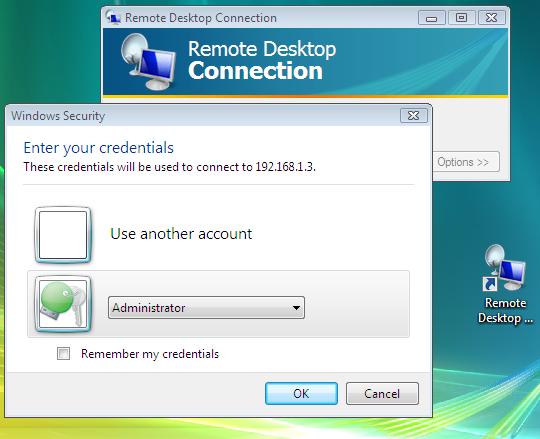
on vista you will see
As Rohos Logon Key RDC plugin works with the established terminal session this Credentials Prompt may be ignored or disable it by default.
Actually if Rohos Logon is installed locally it could work in this ‘credential prompt’ window:
How to disable RDC Credentials Prompt:
To skip the credentials prompt – choose “Do not attempt authentication†under Authentication options on the Advanced tab, but this option is not set permanently. To permanently skip the additional credential screen , edit the Default.RDP file (My Documents folder) in notepad. Including enablecredsspsupport:i:0 disables the Credentials Security Service Provider for the connection. If you use separate .RDP files for different server, modify each of those .RDP files. Below is the content section of the default.rdp file with enablecredsspsupport:i:0 option included.
redirectposdevices:i:0
authentication level:i:0
enablecredsspsupport:i:0
prompt for credentials:i:0
negotiate security layer:i:1
Note that this workaround is suggested only if you connect Windows 2000/2003/XP systems because according to Terminal Services Team blog post – “This option does disable the new credential prompting behavior, but it also disables support for Network Level Authentication for Vista (and Longhorn Server) RDP connections; Network Level Authentication requires credentials to be provided by the client before a session is created on the server side.†So if you do connect to Vista over RDP, you’ll not be able to use this option.

Rohos Logon Key v.2.7. offers two-factor authentication solution for Windows Seven based on various USB tokens and authentication devices. By using a strong and secured password stored on a USB token you can improve your computer security.
What’s new in Rohos Logon Key 2.7:
Apple is expected to release Mac OS X 10.6 Snow Leopard two months after WWDC ’09. Today we have updated install package of Rohos Logon Key for Mac OS X. Now for those who already migrated to Snow it’s possible to lock Mac with a USB Key security. Rohos Logon Key allows converting any USB flash drive into a security Key to access your Mac without entering password each time.
We are glad to announce Rohos Disk Encryption v.1.4
What’s new:
Screen shots:
To our laboratory were delivered USB flash drives – Kingston DataTraveler 101 and Transcend JF V10, both of 8GB capacity. The tests we had run were mostly focused on compatibility and functionality of these USB flash drives with Rohos Mini Drive that creates hidden and password protected partitions on USB drives. Additionally, we discovered a way of locking Ceedo by moving it to the Rohos partition.
How do you prefer to protect your important files and folders in your USB flash drive?
Rohos Mini Drive – allows to create an encrypted partition on your USB flash drive, where you store your private data and applications. You can open these data on a guest computer without having Admin rights. Did we mention that it’s free?
Chisinau, May 05, 2009 – Tesline-Service SRL today announced that its Rohos Logon Key authentication solution for Mac OS® X Tiger and Mac OS® X Leopard now supports two-factor authentication with any USB flash drive and PIN code.
Mac OS X security benefits:
Rohos Face Logon designed to add authentication convenience to the standard Windows logon procedure. It allows to access Windows computer in an easy, fast and secure way by using face recognition logon.
Security benefits with Rohos Face Logon:
What’s new in v.2.7:
+ Self-training feature
+ Improved face detection algorithm
The self-training feature remembers failed recognitions and allows automatically convert them into face models without registering new face models. Open “Not logged in” dialog, choose the patterns and click Register to save them as face models. This makes the additional face registration process unnecessary.
Download 15-day trial, price $25.
* for Windows XP/Vista/7
* works with any web camera (Microsoft LifeCam, Logitech, etc.).
We are glad to announce Rohos Disk Encryption v.1.3 release. Now Rohos Disk Encryption is independent from some Rohos Logon Key settings, e.g. USB key choise, and also the program has data backup reminder if the password protected part is located on a USB flash drive.
What’s new:
Disk and Folder encryption for Windows, Google Drive, One Drive
Hide your data by using Steganography
Chrome,Skype Firefox full profile encryption
Secure Windows Login by using an USB stick
Login Windows Remote Desktop in a secure way by USB key
Secure 2-factor authentication for Terminal Server by OTP and SMS.