Rohos Disk Encryption and Rohos Mini Drive are discontinued

Rohos Disk Encryption and Rohos Mini Drive are discontinued

After more than 20 years of development, we have decided to discontinue Rohos Disk Encryption and its free edition, Rohos Mini Drive. The products can still be used on Windows 7/10 and will be available for purchase.

Why are we making this decision:

Both products rely on a kernel-mode disk driver to mount encrypted partitions as regular drive letters. Microsoft has changed how Windows decides which drivers it trusts. Starting with the April 2026 Windows update, Windows 11 no longer loads drivers signed under the old cross-signing program by default. Only drivers certified through the Windows Hardware Compatibility Program (WHCP) and signed by Microsoft are accepted. This applies to Windows 11 24H2, 25H2, and 26H1, Windows Server 2025, and all future versions.

You can read Microsoft’s announcement of the new Windows driver policy here: Windows driver policy

Producing a new driver that meets these requirements would take significant development effort and ongoing certification costs. For a product of this size, we cannot justify that investment.

What this means for you

  • Windows 7, 8, and 10: Rohos Disk Encryption and Rohos Mini Drive continue to work in full mode. You can continue to create, mount and use your encrypted drives as before.
  • Windows 11: The Rohos Disk driver may be blocked, so encrypted drives cannot be mounted as a drive letter.

How to access your encrypted data on Windows 11

Your data is safe and remains accessible. Use Rohos Disk Browser to open your encrypted drive, browse your files and copy them to any folder. Disk Browser:

  • Works without a kernel driver, encrypting and decrypting in user mode.
  • Opens Rohos encrypted partitions on USB drives, container files and containers hidden inside media files.
  • Is free, portable and open source.

We recommend that Windows 11 users open their encrypted drives with Disk Browser and move important files to a new storage solution at a convenient time.

Thank you

Rohos Disk has been with many of you since the mid-2000s, protecting USB drives, laptops and cloud folders. We are deeply grateful to every customer who trusted us with their data, sent us feedback, reported bugs and helped shape the product over two decades.

Our other products, including Rohos Logon Key, remain under active development.

If you have questions about accessing your data, please contact our support team.

Rohos Logon Key v5.6 with 2FA self-enrollment

We continue to work under Rohos Logon Key development and now implemented our customers’ latest feedback and bug reports. A new minor update contains several important improvements.

What’s new in Rohos Logon Key 5.6:

  • Added feature self 2FA key enrollment in Login screen mode. Enables automatic registration of 2FA method by workstation user during Windows login screen.
  • Improvements for 2FA enforcement and filtering default credentials providers in Windows 11
  • Emergency Login improvements, resetting QA attempts after successful login in Active Directory mode.
  • 2FA Login improvements for long login passwords.

Download and Install over the existing Rohos Logon app to try new features:
Download the latest Rohos Logon Key v.5.6 (15-day trial full version) >>

Read more

How a 2FA bypass incident can occur in real life.

Rohos Logon Key software includes built-in safeguards to prevent bypassing two-factor authentication (2FA). This may occur when a Windows desktop session is initiated by a 2FA-enabled user account, but the 2FA credentials have not been collected by Rohos.

During the latest support incident, we observed that Rohos’ “2FA bypass control” triggered the screen lock procedure each time after the user logged in. Finally, it was identified that 3-rd party software, which installed a Credential proxy DLL ( to filter all user login sessions), implicitly disabled Rohos two-factor authentication control. However, due to the “2FA bypass control” feature, the automated session lock was initiated each time a user logged in using a plain password login.

The service ADSelfService Plus Client Software\ADSSPProvider64.dll, with GUID {B80B099C-62EA-43CD-9540-3DD26AF3B2B0}, has been identified as the root cause of the issue. The service installation re-enabled the conventional password-based single-factor login field (icon) on the Windows login screen. This, in turn, allowed any employee to use a standard password-based credential icon on the login screen, rather than the one-time password login 2FA method provided by Rohos Logon Key.

To correct the issue, the customer was recommended to add 3rd third-party service GUID to the exclusion list at the Options – More… dialog box, as highlighted in the screenshot below.

  Read More about how Rohos Logon 2FA-information feedback-loop control works in Rohos built-in safeguards to prevent 2FA / MFA bypass attacks>>

2FA key name label in Rohos Logon Key v5.5

What’s new in Rohos Logon Key 5.5:

  • Fixed QR-code display error for “Setup OTP” and “Setup Smartphone” login methods. Now Rohos is generating local SVG file with QR code image instead of using google API.
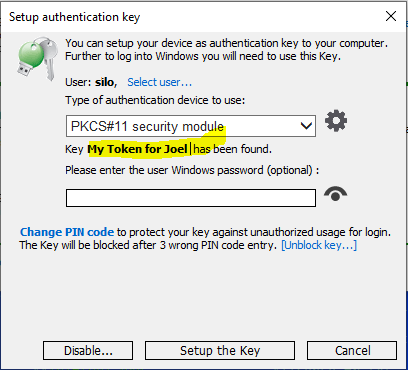
  • Addd 2FA Key name label option when in “Setup Authentication Key” dialog. Now it is possible to assign a label name to each authentication key to distinguish among multiple keys in addition to serial UID number.
  • Tested compatibility with ACS PocketKey FIDO USB token – FIDO® Certified USB Security Key by ACS.
  • Fixed error during Google OTP setup, click on Display QR code resulting error 404 due to deprecated google API.
  • Other minor bug fixing and improvements

Setup Authentication Key dialog box

Just start typing the new name by clicking on Key Label name in “Setup Authentication Key” dialog.

Read more

Rohos Logon Key v5.4

We continue to work under Rohos Logon Key development and now implemented our customers’ latest feedback and bug reports. A new minor update contains several important improvements.

What’s new in Rohos Logon Key 5.4:

  • Improvements for RFID cards login method for RFIDeas pcProx reader.
  • Improvements for 2FA enforcement and filtering default credentials providers in Windows 11
  • Emergency Login improvements

Download and Install over the existing Rohos Logon app to try new features:
Download the latest Rohos Logon Key v.5.4 (15-day trial full version) >>

Read more

Learning lessons: Fully implement multi-factor authentication

In brief: Recently a report of the cyber-attack (October 2023) on the British Library was published and it shows that on some on-premise servers multi-factor authentication (MFA) was not fully implemented, and the absence of MFA contributed to the attackers’ ability to enter the system.

The 18 pages report contains 16 Learning lessons from the attack and lesson nr. 3 is Fully implement multi-factor authentication –

“Multi-factor authentication needs to be in place on all internet-facing endpoints, regardless of any technical difficulties in doing so. The Library had MFA in place for all end-user technologies, but not on certain supplier endpoints”.

Link to full report>

About Rohos Logon Key

Rohos Logon Key adds strong two-factor authentication for Windows Remote Desktop login and safeguards to prevent 2FA / MFA bypass attacks. Rohos Logon implements multi-factor authentication control, where you can combine different MFA methods: password, PIN code, Smartphone, or strong authentication devices like U2F key, YubiKey, Google Authenticator One-Time password codes, SafeNet iKey tokens, or RFID cards. With Rohos you can protect standalone computers, Active Directory workstations, Terminal Servers, Azure and AWS workstations, or Apply MFA on top of other remote assistance solutions like TeamViewer, and AnyDesk.
Rohos is the only MFA solution that allows the prevention of MFA bypass, reporting to SIEM and creating smartphone push notifications in case of any MFA discrepancies.

Download and try the latest Rohos Logon Key for 15-day (full version) >>

Get your copy of the Rohos Logon Key>

View the list of supported 2FA methods > 

Rohos Logon Key v5.3

We continue to work under Rohos Logon Key development and now implemented our customers’ latest feedback and bug reports. A new minor update contains several important improvements.

What’s new in Rohos Logon Key 5.3:

  • Improvements for Mifare RFID cards to support quick card swipe in some scenarios.
  • Improvements on Azure workstation login via RDP to correctly reuse NLA credentials in some scenarios.
  • Improved LDAP queries after LDAP_REFERRAL error code.
  • Improved 1FA login possibility by using NLA credential for Remote Desktop access when user account have 2FA methods such as Yubikey, FIDO U2F, which in some cases lead to 2FA enforcement.
  • Improvements for Mifare RFID Cards login method to use full-size card UID number.
  • Added new option for 2FA bypass control feature – “Notify any successful login (2FA/1FA)” which will create push notification for Rohos Logon Key Android/iOS app in case of any login into your Server.
  • Improved Emergency Login mode that now allows to use all possible login methods after a successful Questions/Answers procedure. You need to restart Windows after the Rohos Emergency Login procedure to access all possible credentials methods, such as Face Login, PIN code, etc, for normal login. These changes apply only for console based computer access.
  • Improved Rohos Logon Key for Android app, new version 2.17 now has been published on Google Play Market. Added “2FA events list” and “Copy Push URL to clippboard” commands.

Download and Install over the existing Rohos Logon app to try new features:
Download the latest Rohos Logon Key v.5.3 (15-day trial full version) >>
Install Rohos Logon Key app for Android >>


About Rohos Logon Key

Rohos Logon Key adds strong two-factor authentication for Windows login and safeguards to prevent 2FA / MFA bypass attacks. Rohos allows implementing multi-factor authentication decision solution, where you can combine different authentication devices: password, PIN code, Smartphone, or strong authentication devices like U2F key, YubiKey, Google Authenticator One-Time password codes, SafeNet iKey tokens, or RFID cards. With Rohos you can protect standalone computers, Active Directory workstations, Terminal Servers, Azure and AWS workstations, or other remote assistance solutions like TeamViewer, and AnyDesk.

Get your copy of the Rohos Logon Key>

View the list of available 2FA methods in Rohos Logon Key> 

Windows ARM support in Rohos Logon v.5.2

We are glad to announce Rohos Logon Key 5.2 beta release with Windows on ARM support that now works on Microsoft Surface PRO X2 based on SQ1,SQ2,SQ3 CPU and other Windows laptops based on Snapdragon CPU.

What’s new in Rohos Logon Key 5.2:

  • Improved AD group lookup code
  • Fixed policy to require 2FA in case of AD group lookup failed.
  • Set to ignore NLA credentials over RDP and require user password entry again if the following option is enabled – “require a password with the 2FA key”.
  • Added support for ARM64 Windows for Windows Surface 
  • MSI setup package updated for compatibility with Windows on ARM.
  • Other minor improvements.

Download and Install over the existing Rohos Logon app to try new features:
Download the latest Rohos Logon Key v.5.2 (15-day trial full version) >>
Download MSI package for Rohos Logon Key v.5.2.

About Rohos Logon Key

Rohos Logon Key adds strong two-factor authentication control for Windows login and safeguards to prevent 2FA / MFA bypass attacks. Rohos allows implementing multi-factor authentication decision solution, where you can combine different authentication devices: password, PIN code, Smartphone, or strong authentication devices like U2F key, YubiKey, Google Authenticator One-Time password codes, SafeNet iKey tokens, or RFID cards. With Rohos you can protect standalone computers, Active Directory workstations, Terminal Servers, Azure and AWS workstations, or other remote assistance solutions like TeamViewer, and AnyDesk.

Get your copy of the Rohos Logon Key>

View the list of available 2FA methods in Rohos Logon Key> 

Rohos Disk Encryption v.3.3 and Rohos Mini update

This is a bug-fixing update.

What’s new in Rohos Disk v3.3:

  • Updated Rohos Disk Browser
  • Fixed 2FA authentication methods compatibility with Rohos Logon Key setup.
  • Minor performance improvements for the Encrypted Folder feature.

Download Rohos Disk Encryption v3.2 (15 day Trial) >

This update is free for registered users. We also update Rohos Mini setup package with the improvements mentioned above.

About Rohos Disk Encryption

Rohos Disk program allows you to encrypt your computer, USB flash drive, or Cloud folders. It is designed for those who have megabytes of sensitive files and who is really concerned with privacy and information security. To protect access to encrypted data you can use electronic keys like USB flash drive or security Keys or Smartphone. You may also work with secret files by using Rohos Disk for Android. 

Download Rohos Disk 15-day trial>

Get your copy of Rohos Disk Encryption license>

View the complete list of Rohos Disk Encryption features> 

Rohos Logon Key v5 update

We are glad to announce Rohos Logon Key 5.0 stable version with minor bug fixes and improvements on top of 5.0 preview release.

What’s new in Rohos Logon Key 5.0:

  • Fixed “Users and Keys” dialog box.
  • MSI setup package updated for compatibility with Microsoft Defender.
  • Fixed PIN code dialog box behaviour in logon screen.
  • Fixed RFID card 2FA method and login loop issue after card removal action.
  • Improvements in Google Auth OTP 2FA method for workstations in Windows Active Directory.
  • Minor fixes in Rohos Remote Config.

Download and Install over existing Rohos Logon app to try new features:
Download the latest Rohos Logon Key v.5.0 (15-day trial full version) >>

For customers with Rohos Logon Key v.4.8-4.9 license, the update is available with 50% discount, please refer to the registration letter or apply for a discount now.

About Rohos Logon Key

Rohos Logon Key adds strong two-factor authentication control for Windows login and safeguards to prevent 2FA / MFA bypass attacks. Rohos allows implementing multi-factor authentication decision solution, where you can combine different authentication devices: password, PIN code, Smartphone, or strong authentication devices like U2F key, YubiKey, Google Authenticator One-Time password codes, SafeNet iKey tokens, or RFID cards. With Rohos you can protect standalone computers, Active Directory workstations, Terminal Servers, Azure and AWS workstations, or other remote assistance solutions like TeamViewer, and AnyDesk.

Get your copy of the Rohos Logon Key>

View the list of available 2FA methods in Rohos Logon Key>